Building an impactful presentation shouldn't mean starting from scratch for every single page. Knowing how to quickly replicate your best work can completely change your creation experience.
In this guide, we will explore exactly how to duplicate a slide in Google Slides. Dive in to unlock these simple techniques and instantly become a faster, more efficient presenter.
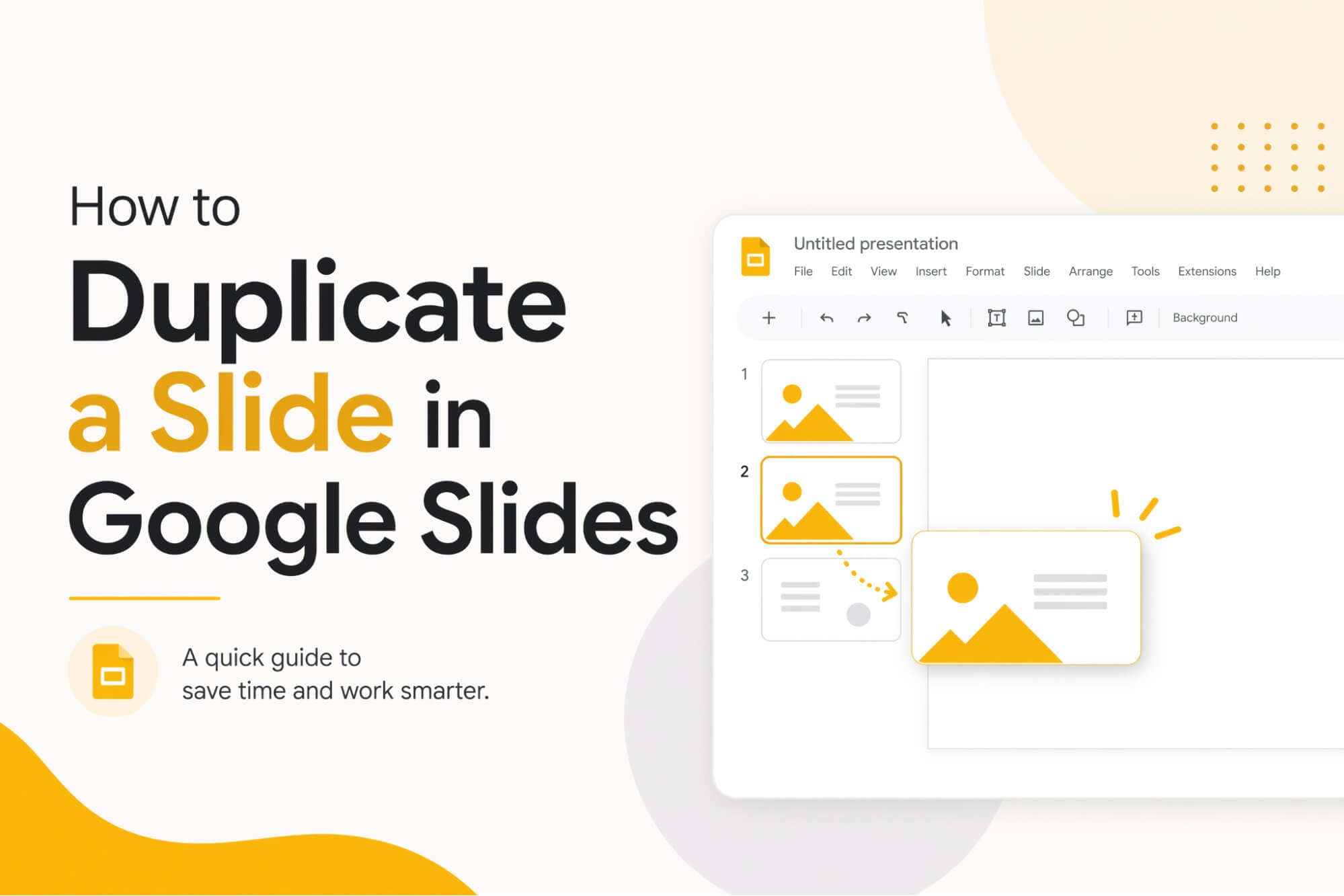
Table of Contents
How to Duplicate a Slide in Google Slides: 4 Quick and Simple Techniques
To save time and keep your presentation’s visual style consistent, reusing existing layouts is essential. Here are four incredibly simple methods on how to duplicate a slide in Google Slides.
Duplicate via Right-Click
Select your target slide, right-click to reveal the menu, then click “Duplicate slide” to create a copy instantly.

Duplicate via Menu Bar
Select your target slide, click "Slide" in the top menu, and choose "Duplicate slide" from the dropdown to instantly copy it.

Copy and Paste via Right-Click
Select your slide, right-click and click "Copy," then right-click an empty space and choose "Paste" to duplicate it.

Duplicate via Keyboard Shortcuts
Select your target slide, then simply press Ctrl+D on your keyboard to successfully duplicate it in an instant.
HIX AI Slides Agent: Go Beyond Manual Duplication to Flawless Design
While manually copying slides provides a quick fix to retain formatting, HIX AI slides agent elevates workflow efficiency to a whole new level. Simply enter a topic, and HIX AI conducts deep research to automatically generate a complete, beautifully designed presentation.
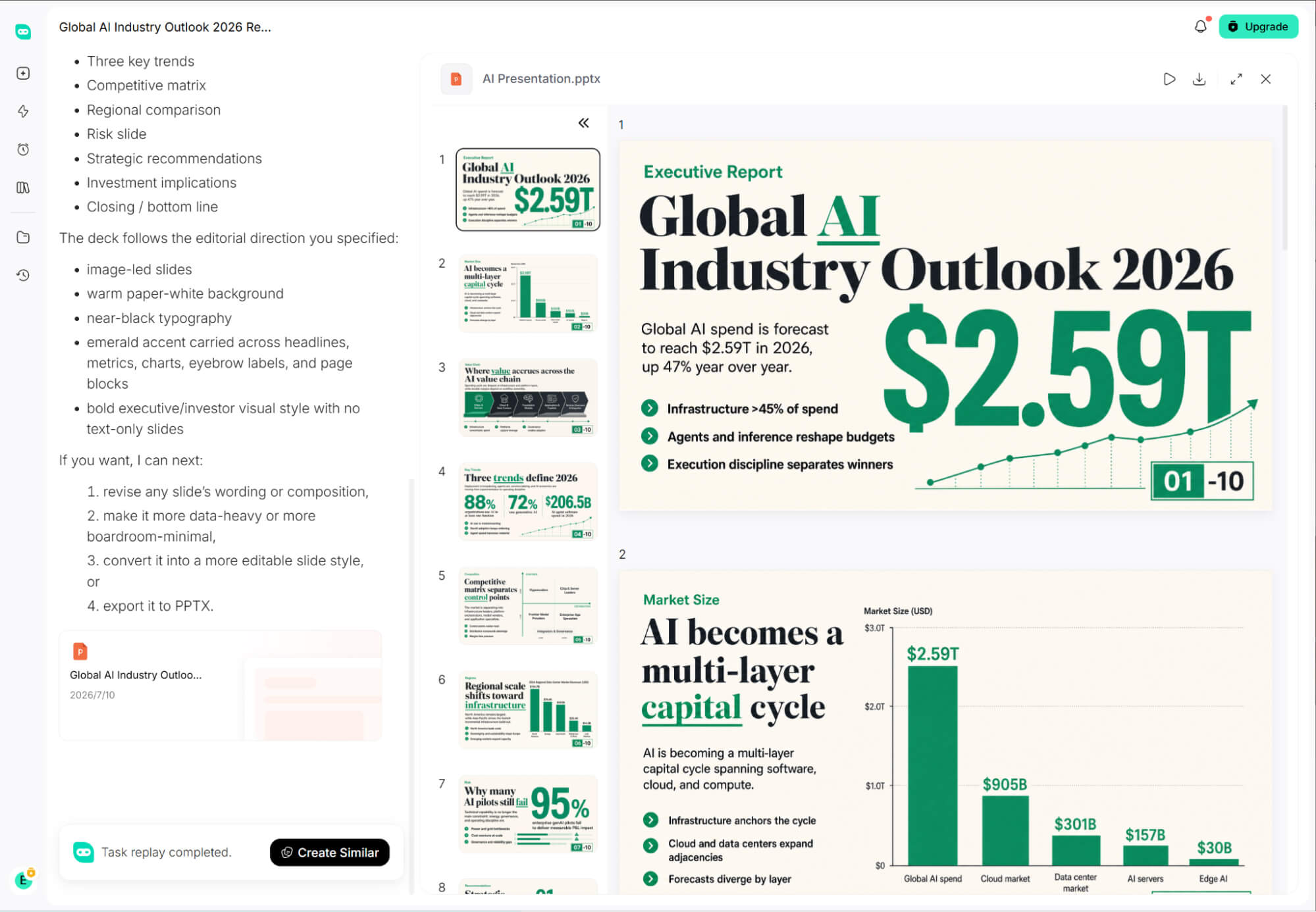
For existing files and web content, HIX AI provides seamless PPT conversion. Feed in raw documents, images, or web pages, and our AI instantly turns unstructured information into clear, logically structured slides.
HIX AI also refines existing PowerPoint decks with ease. It optimizes layouts, polishes visual aesthetics, and cleans up formatting without requiring a start from scratch.
For corporate teams and any presenter looking to maintain a strong brand identity, HIX AI supports custom PPT template uploads, ensuring every generated deck strictly adheres to official fonts, color palettes, and styling guidelines.
If you are ready to eliminate time-consuming manual slide creation, give HIX AI Slides Agent a try. It serves as an indispensable daily assistant that turns raw ideas into presentation-ready PowerPoint decks.
Try HIX AI Slides Now!
Conclusion
Mastering these four quick duplication techniques is a fantastic way to keep your slide styles perfectly consistent while saving yourself plenty of precious design time.
But let’s face it—even the best manual shortcuts can feel a bit tedious over time. To genuinely transform your workflow, I highly recommend giving HIX AI Slides Agent a try.
It effortlessly takes the hassle out of presentation creation, handling the heavy lifting so you can focus entirely on your core message rather than repetitive formatting tweaks.
🆓Free to Try • 👍Professional Slides • ⭐4.9/5 Rating